Import and Export Links via CSV

Short links at scale need bulk tools. Middlewr's CSV import and export lets you manage hundreds of links at once -- create them in bulk, update existing ones, or export your library for backup or analysis.
Prerequisites
- A Middlewr account
- A workspace where you have the Editor role or above
Exporting Links
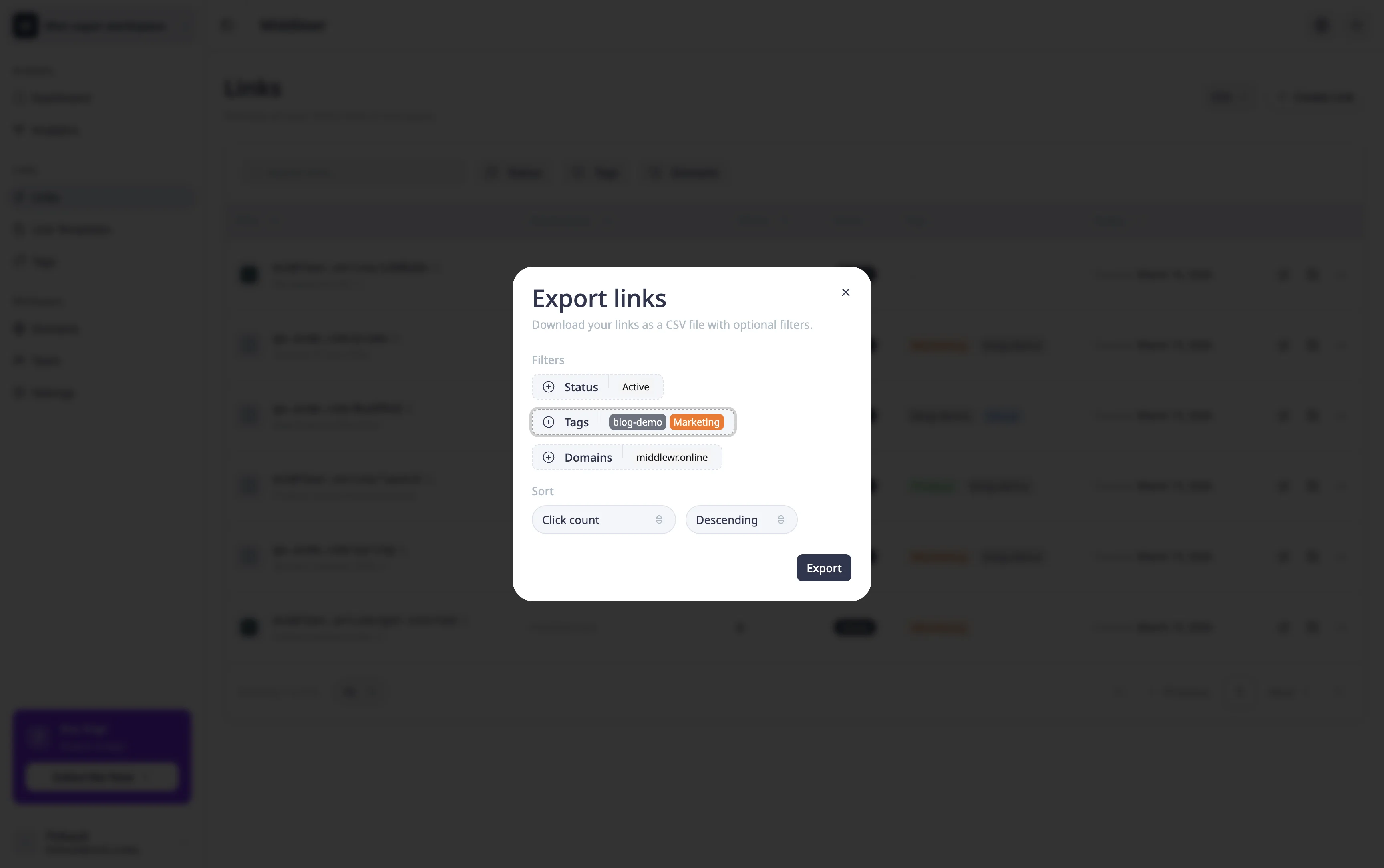
From the Links page, click the CSV dropdown button in the toolbar and select Export.
A modal opens with filter options that are prefilled from your current view:
- Status -- filter by active or inactive links
- Tags -- filter by one or more tags
- Domains -- filter by specific domains
You can also choose the sort order (by creation date, title, click count, or destination URL) and direction (ascending or descending).
Click Export to download the file. The CSV is named middlewr-{workspace}-{date}.csv.
Tip: Exporting is also a great way to get a template CSV file with the right column format for importing.
Importing Links
Click the CSV dropdown and select Import. A step-by-step wizard guides you through the process.
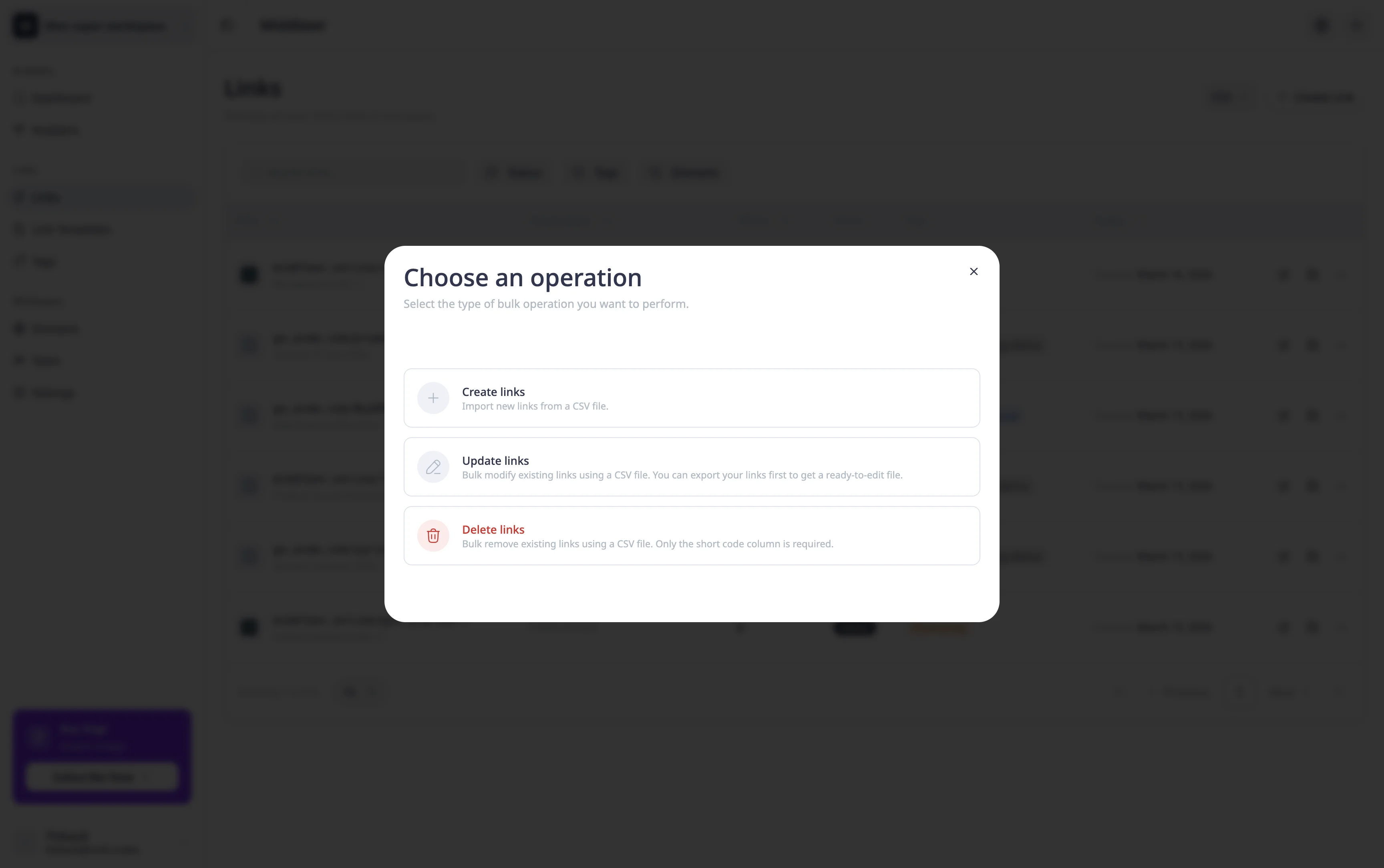
Step 1: Choose an operation
Pick what you want to do with the uploaded data:
- Create -- add new links from the CSV rows
- Update -- modify existing links matched by their short code
- Delete -- remove existing links matched by their short code
Step 2: Upload your CSV
Drag and drop your CSV file or click to browse. Files must be under 5 MB.
A Download template button at the bottom lets you download a blank CSV with the correct headers for the chosen operation -- useful if you're starting from scratch.
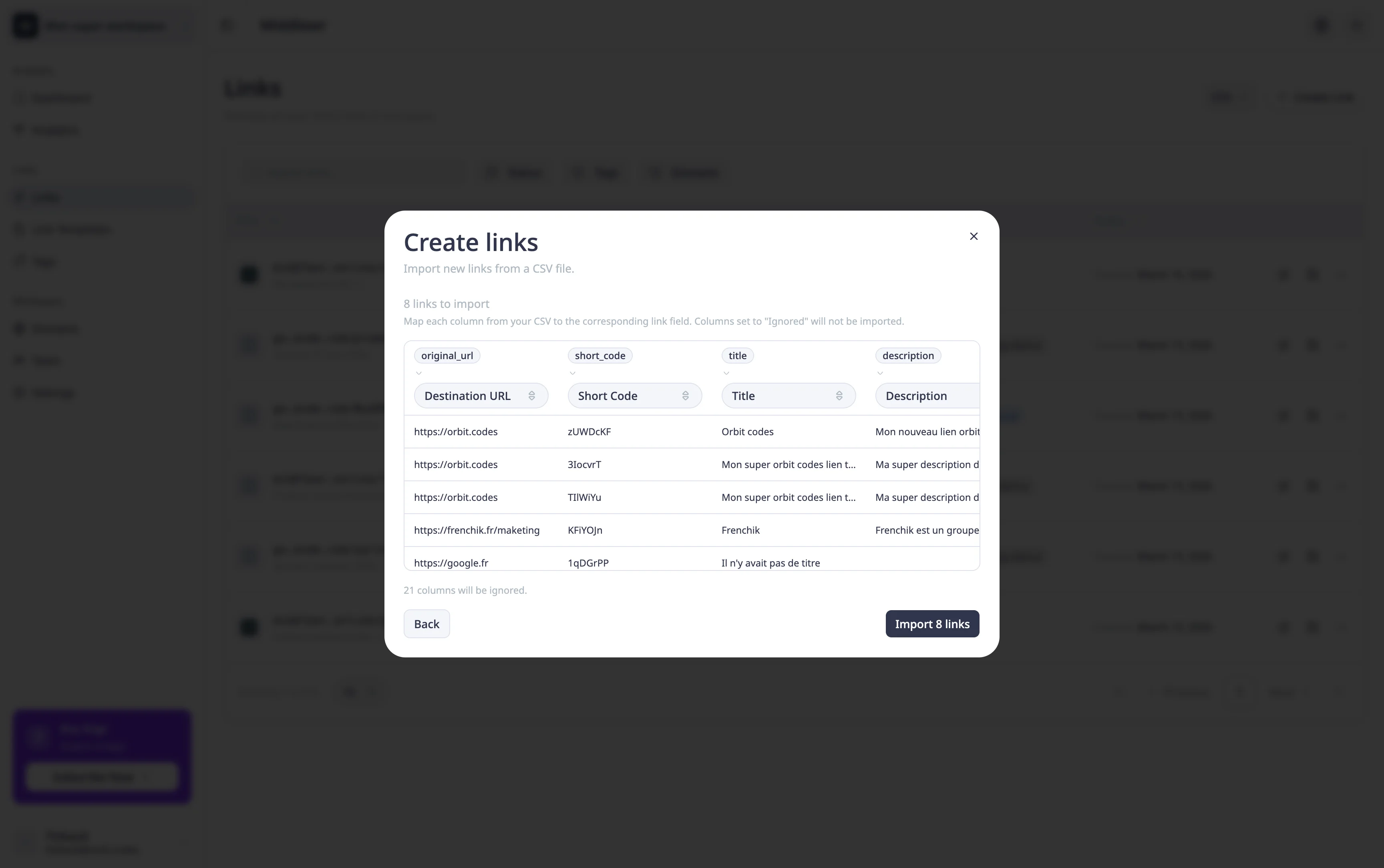
Step 3: Preview and map columns
A preview table shows your data. Each column header has a dropdown where you can map it to a Middlewr field or mark it as ignored. The system auto-detects common column names.
Supported fields:
| Field | Description |
|---|---|
original_url |
Destination URL (required for create) |
short_code |
Custom short code (required for update/delete, auto-generated if empty on create) |
title |
Link title |
description |
Link description |
domain |
Domain for the short link |
tags |
Comma-separated list of tag names |
is_active |
Whether the link is active (true/false) |
For create operations, if no short_code column is mapped, short codes are automatically generated.
For update and delete operations, a confirmation dialog appears before proceeding.
Step 4: Import progress
The import runs in the background. A progress bar shows real-time status. When complete, you see the count of successful and failed rows. If any rows failed, you can download an error report or go back to modify and retry.
Going further
- Create your first short link -- learn the basics of link creation if you're just getting started
- Organize your links with tags -- categorize your imported links with tags for easy filtering
- Create and manage API keys -- automate link creation programmatically when CSV isn't enough