Create and Manage API Keys

API keys let you interact with Middlewr programmatically — create links, read analytics, or manage your workspace through the API. Each key has a permission level that controls what it can access. This guide covers creating, using, and deleting API keys.
Prerequisites
- A Middlewr account
- The Admin role on the workspace (API key management is restricted to admins)
Step 1: Navigate to API Keys
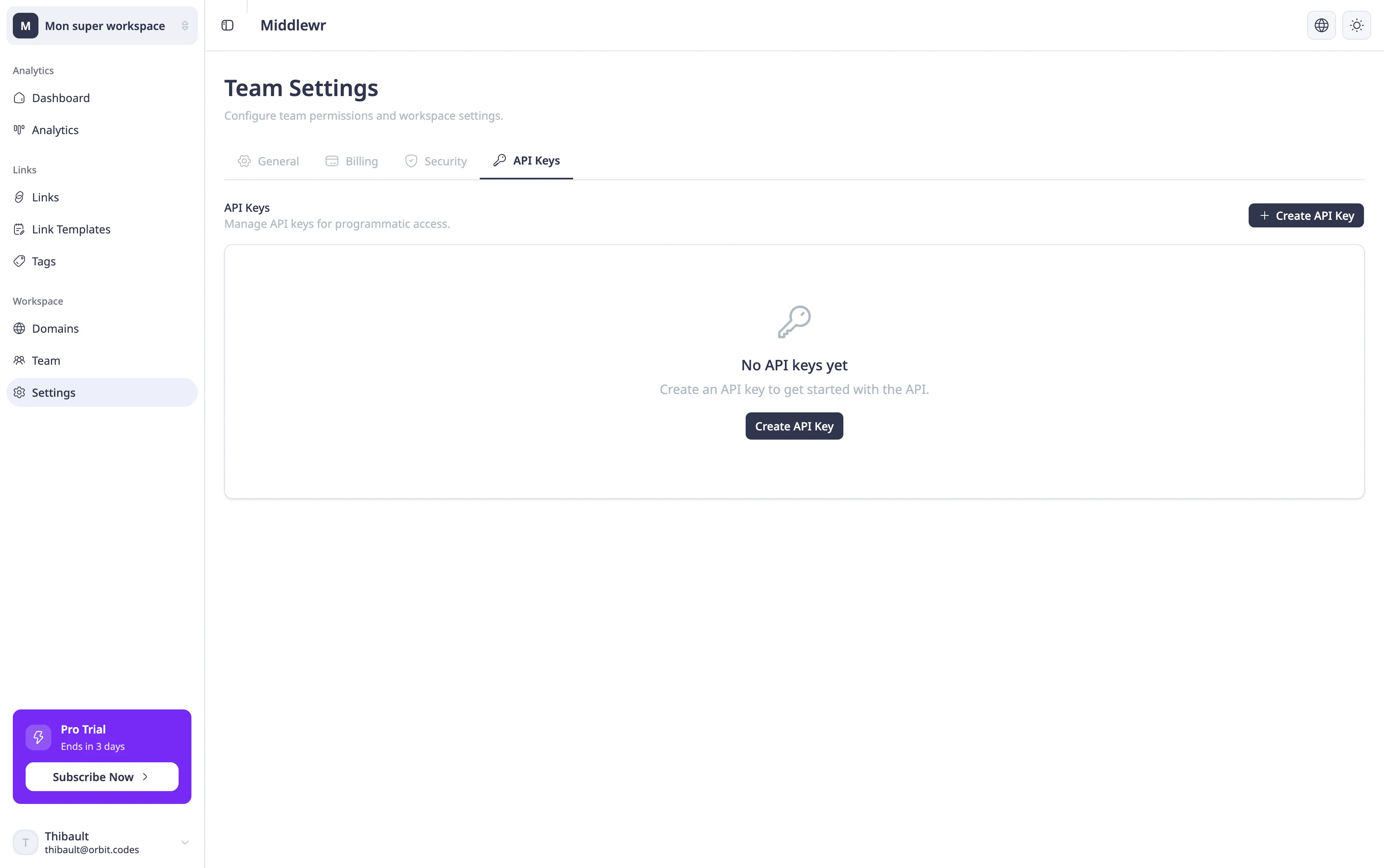
Go to Settings from the sidebar, then click the API Keys tab. This page lists all existing API keys for the workspace, showing their name, key prefix, permission level, last used date, and creation date.
If no keys exist yet, you'll see an empty state inviting you to create your first one.
Step 2: Create an API key
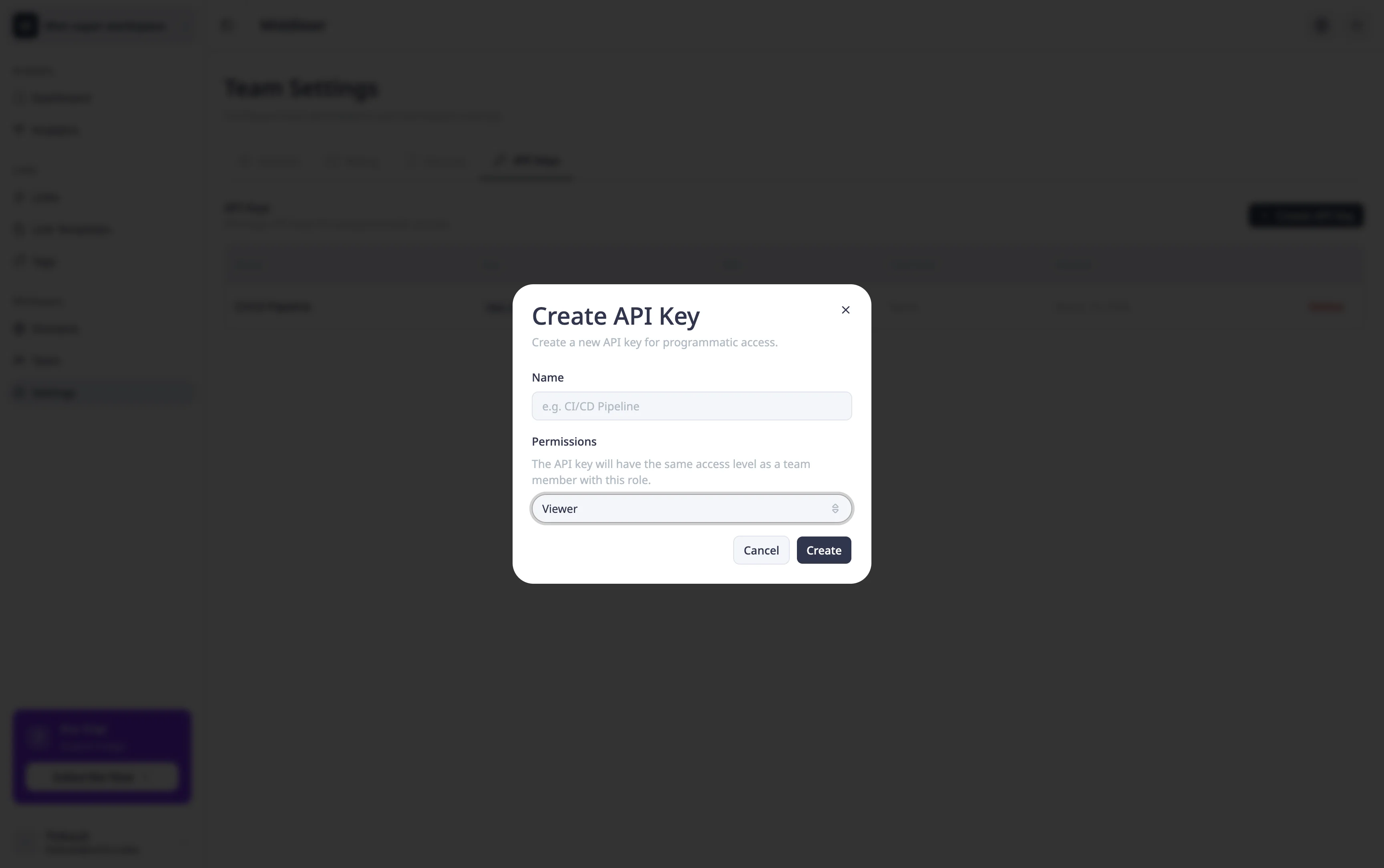
Click Create API Key. A modal appears with two fields:
- Name — a descriptive label to identify this key (e.g., "CI/CD Pipeline", "Marketing Automation").
- Permissions — select the permission level for this key from a dropdown. The available levels depend on your own role — you can only grant permissions equal to or lower than your own.
Click Create to generate the key.
Step 3: Copy your key
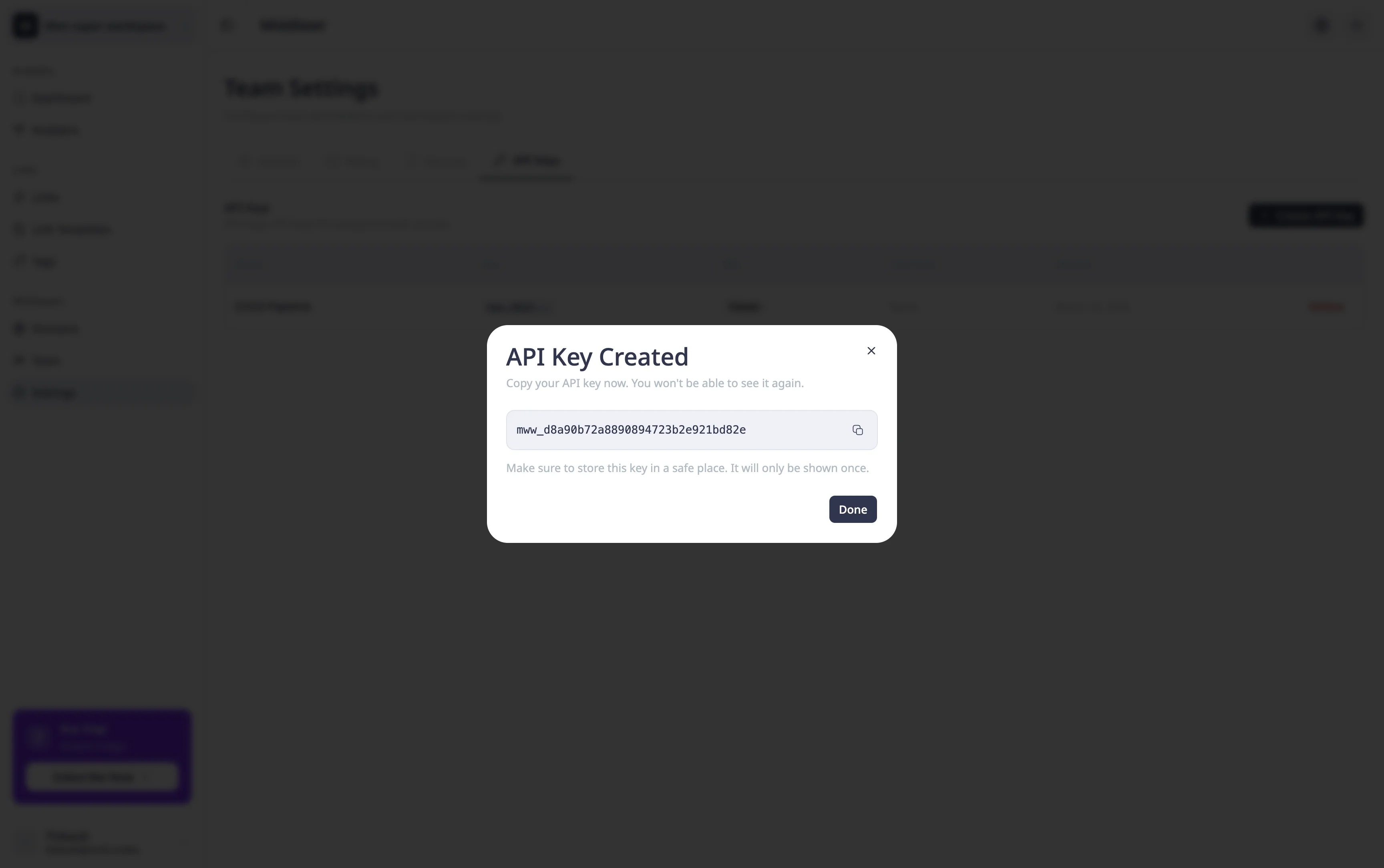
After creation, a dialog displays your full API key. This is the only time the key is shown — copy it immediately and store it somewhere secure (a secrets manager, environment variable, etc.).
The key prefix (first characters followed by ...) will remain visible in the table for identification, but the full key cannot be retrieved again.
Deleting an API key
To remove a key, click the delete button next to it in the table. A confirmation dialog will ask you to confirm, warning that any application using this key will immediately lose access. This action cannot be undone.
Security best practices
- One key per integration — don't share a single key across multiple services. If one is compromised, you can revoke it without affecting others.
- Use minimum permissions — give each key only the access level it actually needs.
- Monitor usage — the "Last used" column helps you identify unused keys that should be deleted.
- Rotate regularly — create a new key, update your integration, then delete the old one.
Going further
Now that your API keys are set up, here are a few things to explore next:
- Import and export links via CSV — bulk manage your links by importing from or exporting to CSV files, which pairs well with API-driven workflows.
- Manage billing and plans — upgrade your workspace to unlock higher API rate limits and additional features as your usage grows.
- A/B testing with split routing — combine API-driven link creation with split routing to automate your A/B testing workflows.