A/B Testing with Split Routing

Want to know which landing page converts better? Split routing in Middlewr lets you divide traffic from a single short link across two or more destination URLs. You control the percentage each variant receives, and since it all happens at the edge, visitors experience no delay. This is a fast, no-code way to run A/B tests on landing pages, offers, or any URL you want to compare. This guide walks you through setting it up.
Prerequisites
Before you begin, make sure you have:
- A Middlewr account
- A workspace with the Manage Links permission
- An existing link to test (or create one first)
- Two or more destination URLs ready to test
Step 1: Open the A/B testing preset
Navigate to Links and click the edit icon on the link you want to split. In the link detail view, click Apply preset in the toolbar above the graph editor to expand the preset cards.
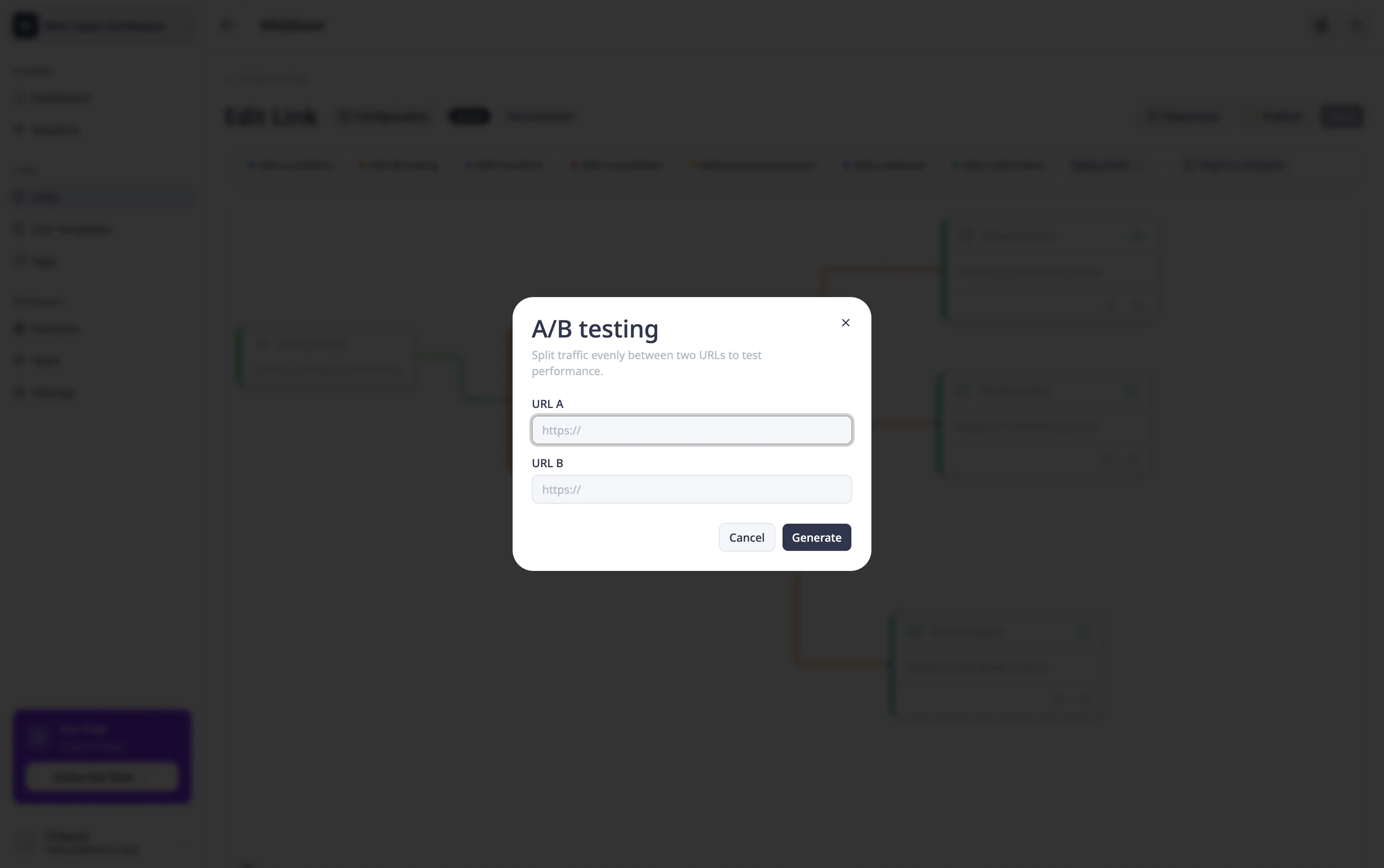
Click the A/B testing card. A modal appears asking for two URLs — your variant A and variant B destinations.
Step 2: Enter your variant URLs
Fill in both URL fields with the pages you want to test. For example:
- URL A:
https://example.com/landing-v1 - URL B:
https://example.com/landing-v2
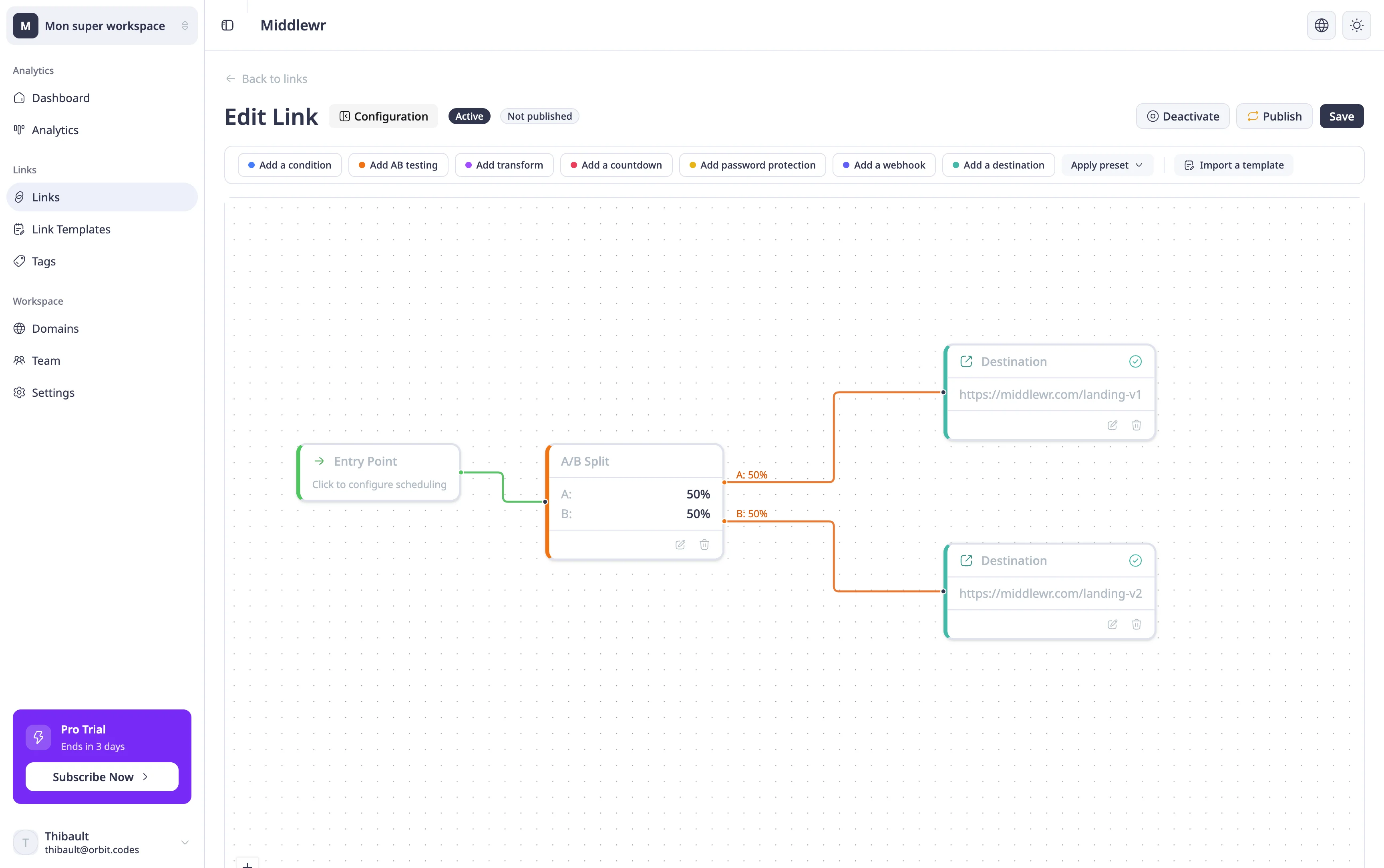
Click Generate. Middlewr creates a split node in the graph with a default 50/50 traffic distribution between both destinations.
Step 3: Adjust traffic weights
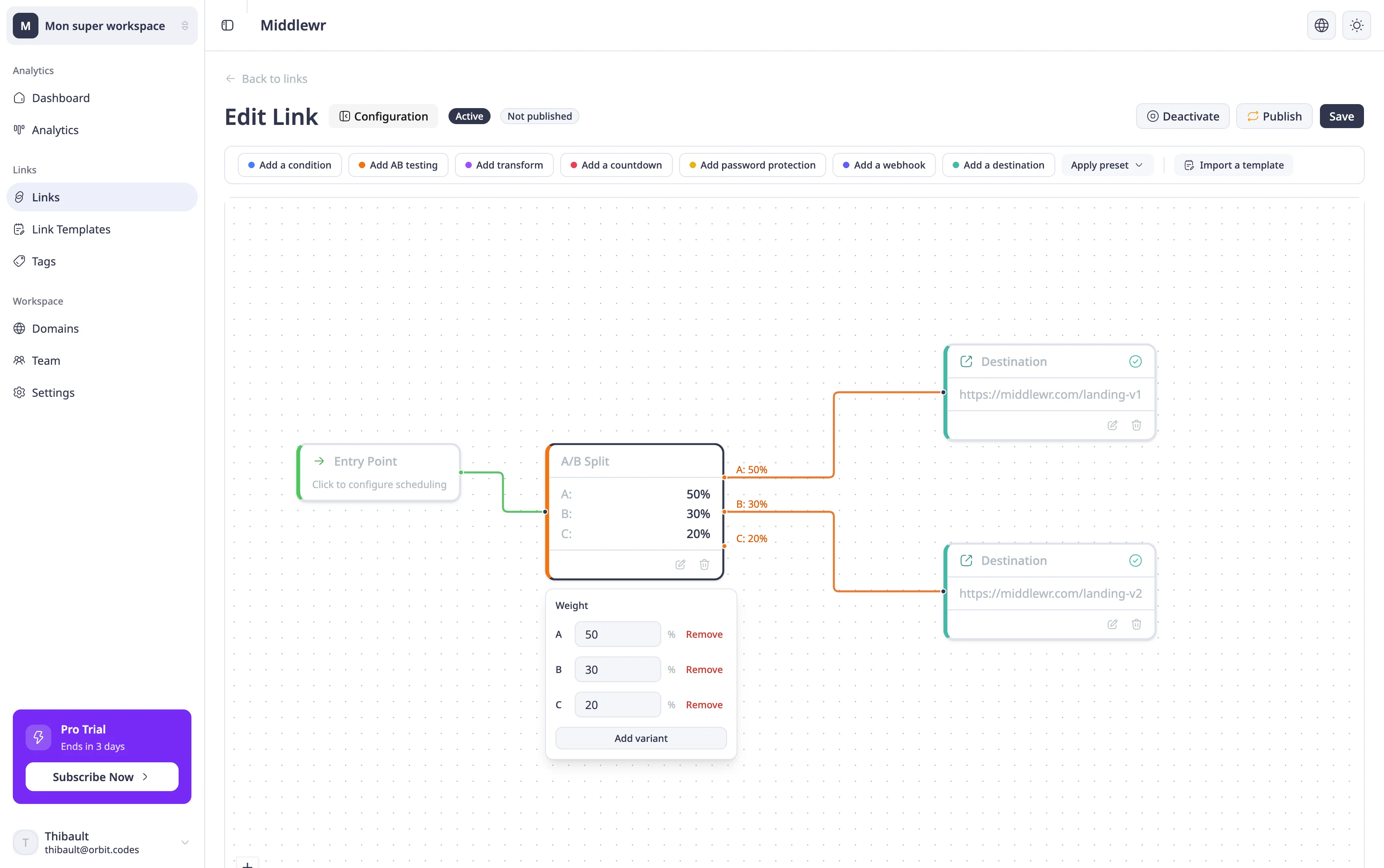
The default 50/50 split works for many tests, but you can adjust it. Click the edit icon on the split node to open the weight editor. Here you can:
- Change the percentages — for example, send 80% to your control (A) and 20% to the variant (B) for a more conservative test.
- Add more variants — split traffic across three or more URLs to test multiple options at once.
- Remove a variant — as long as at least two remain.
Weights must add up to 100. A split of 75/25 sends 75% of traffic to the first variant and 25% to the second.
Once your weights are set, click Save in the top-right corner, then Publish to push the split routing live.
Reading the results
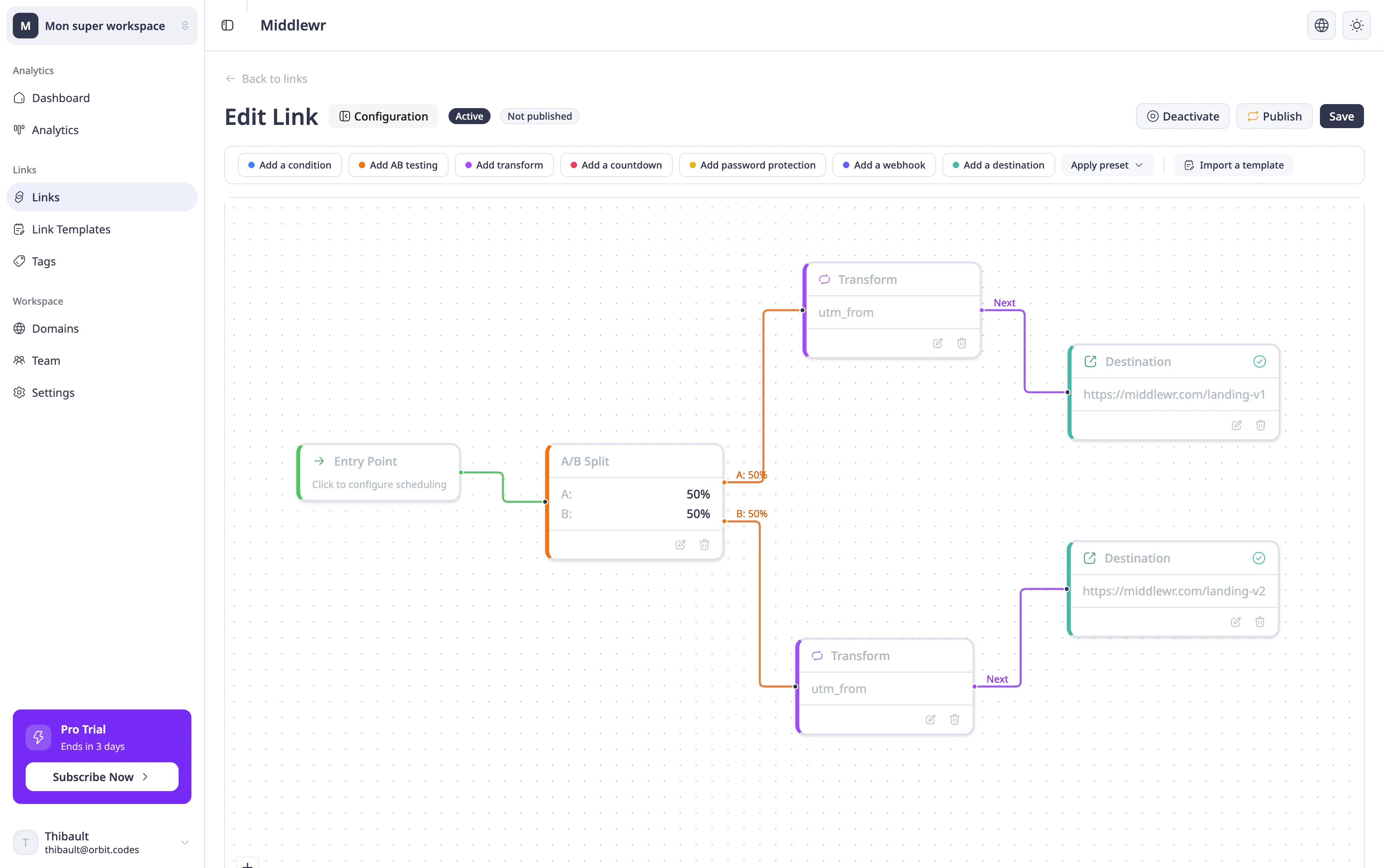
Middlewr handles traffic splitting at the edge, and with Transform nodes you can automatically tag each variant with distinct UTM parameters — giving you full attribution without a separate experimentation platform. To measure which variant performs better:
- Add distinct UTM parameters to each destination (see Set up UTM tracking) so your analytics tool can attribute conversions to each variant.
- Check Middlewr's Analytics dashboard for total click volume and referrer data across the link.
- Compare conversion rates in your analytics tool (Google Analytics, Plausible, etc.) using the UTM data.
Going further
- Set up UTM tracking — tag each variant with different UTM parameters to track conversions per variant
- Understand your analytics dashboard — monitor click data for your split-routed links
- Set up conditional routing — combine A/B testing with device or geo routing for targeted experiments