How to Redirect Bots and Humans to Different Destinations

When you share a short link on Slack, Twitter, or LinkedIn, a bot visits the URL before any human does — it's generating the preview card you see in the chat. Search engine crawlers like Googlebot do the same to index your pages. And now, AI crawlers such as GPTBot, ClaudeBot, and PerplexityBot also visit your links to feed their models.
These bots don't need the same experience as a real person. A human wants your beautiful landing page. A bot just needs clean, structured content. With Middlewr, you can redirect each to the right destination — automatically.
Why separate bots and humans?
Optimized link previews
When you paste a link into Slack or Twitter, a bot visits the URL to generate the preview card. If your landing page has heavy JavaScript, animations, or gated content, the preview might look broken or empty. By redirecting bots to a lightweight page with clean Open Graph tags, you control exactly what appears in the preview — a proper title, description, and image every time.
Control what AI crawlers see
AI crawlers like GPTBot, ClaudeBot, and PerplexityBot visit your links to index content for their models. By default, they see the same page as your human visitors. With bot redirection, you can send them to a dedicated page — a clean text version of your content, a summary, or even a page with specific instructions for AI systems. You decide what gets indexed, not the crawler.
Prerequisites
Before you begin, make sure you have:
- A Middlewr account
- At least one short link already created in your workspace — if you haven't created one yet, check out Create your first short link first
- Two destination URLs ready: one for your human visitors (e.g., your landing page) and one for bots (e.g., a lightweight page with Open Graph meta tags or plain text content)
Step 1: Open the Rule Graph Editor
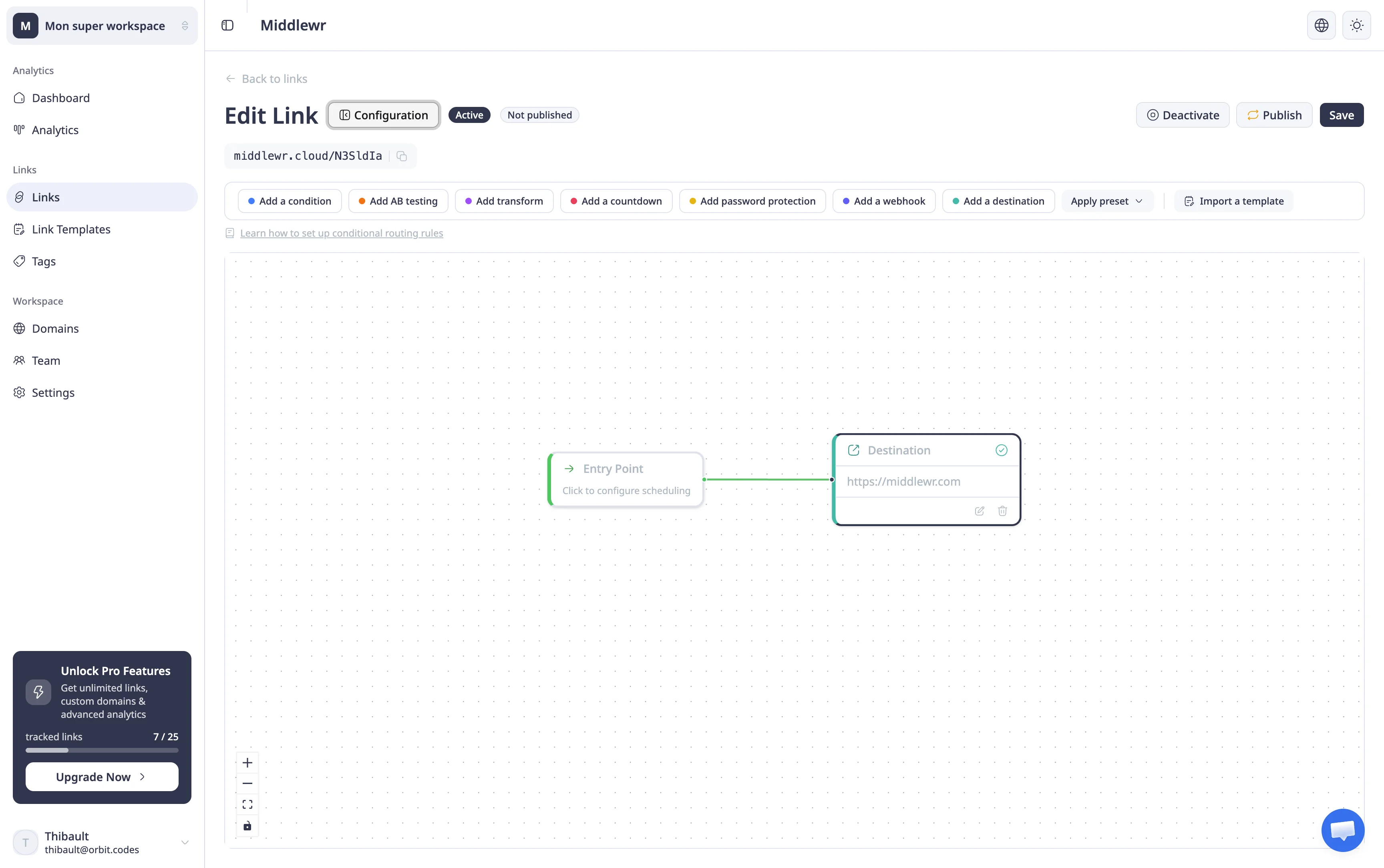
Navigate to the Links page and click on the link you want to configure. This opens the link detail page with the visual rule graph editor. If this is a new link, you'll see just the Entry node.
Step 2: Add an "Is Bot" Condition
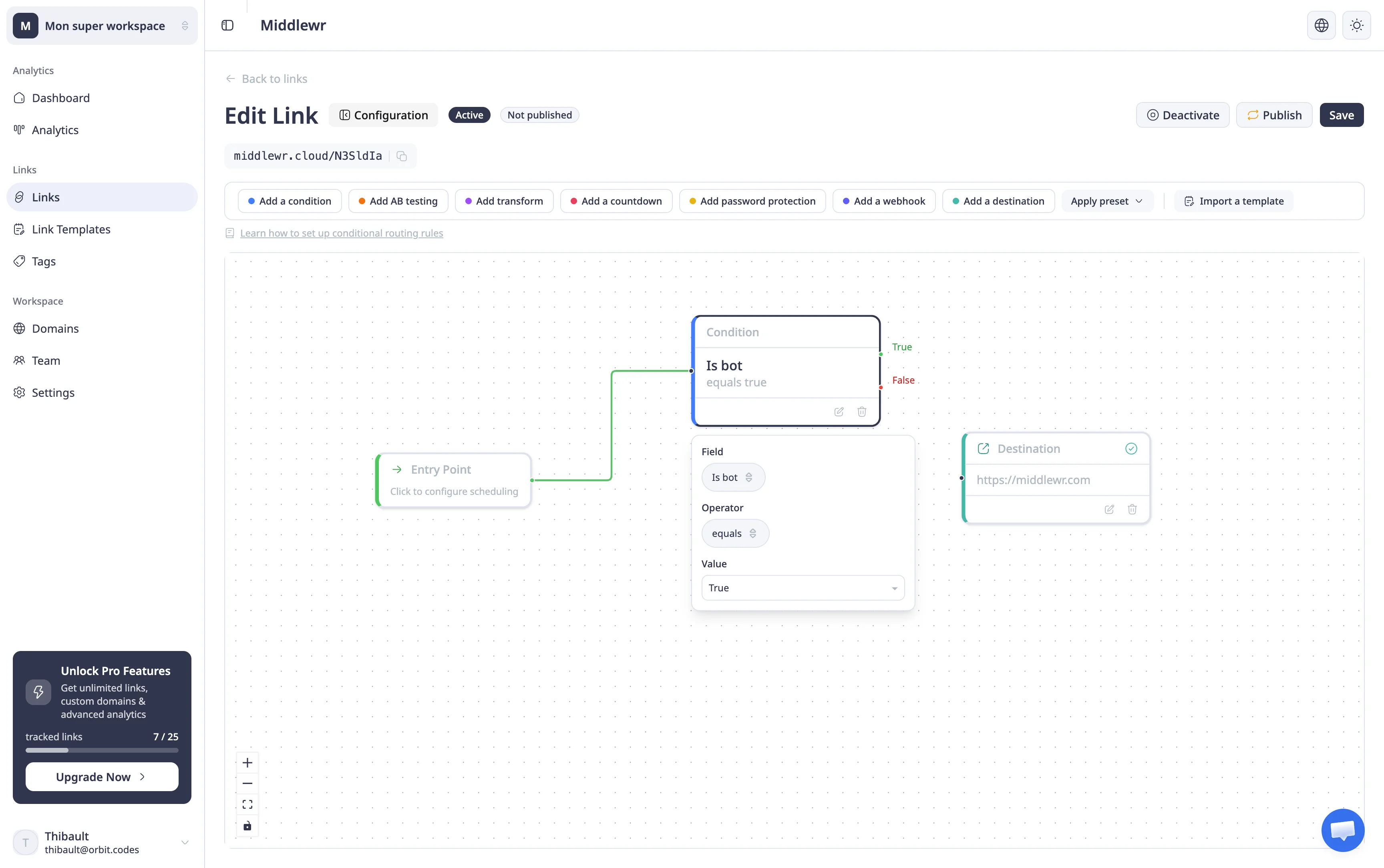
Click Condition in the toolbar to add a Condition node to the canvas. Configure it with the following settings:
- Field:
Is bot - Operator:
equals - Value:
true
This condition checks whether the visitor is a bot — including link preview crawlers (Slackbot, Twitterbot, Facebook), search engines (Googlebot, Bingbot), and AI crawlers (GPTBot, ClaudeBot, PerplexityBot).
Connect the Entry node to the Condition node.
Step 3: Configure Both Destinations
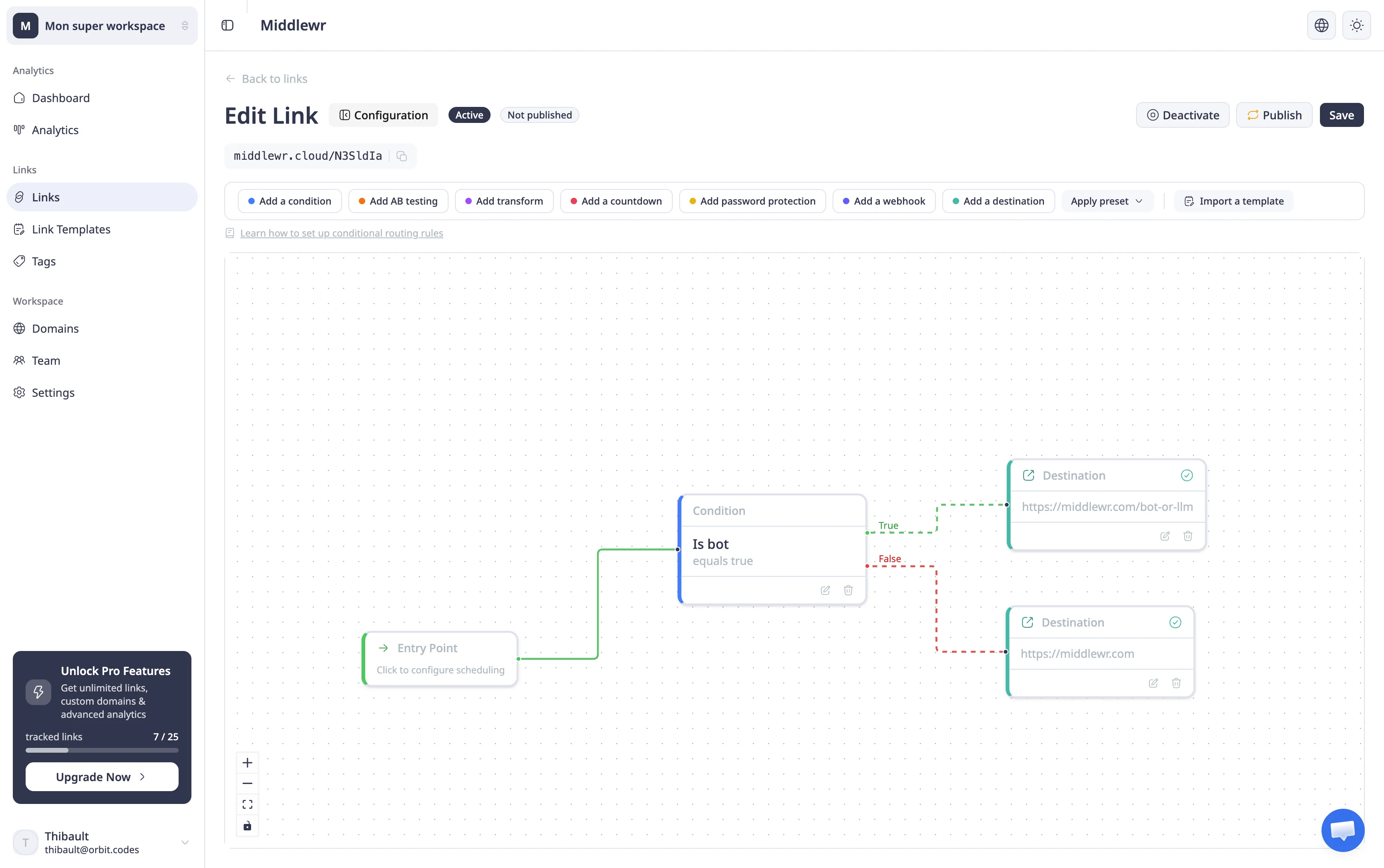
Add two Destination nodes to the canvas:
- Connect the Condition's True output (it's a bot) to a Destination node. Enter the URL of your bot-friendly page — for example, a lightweight HTML page with clean Open Graph tags.
- Connect the Condition's False output (it's a real person) to a second Destination node. Enter the URL of your landing page — the one designed for humans.
Step 4: Save and Publish
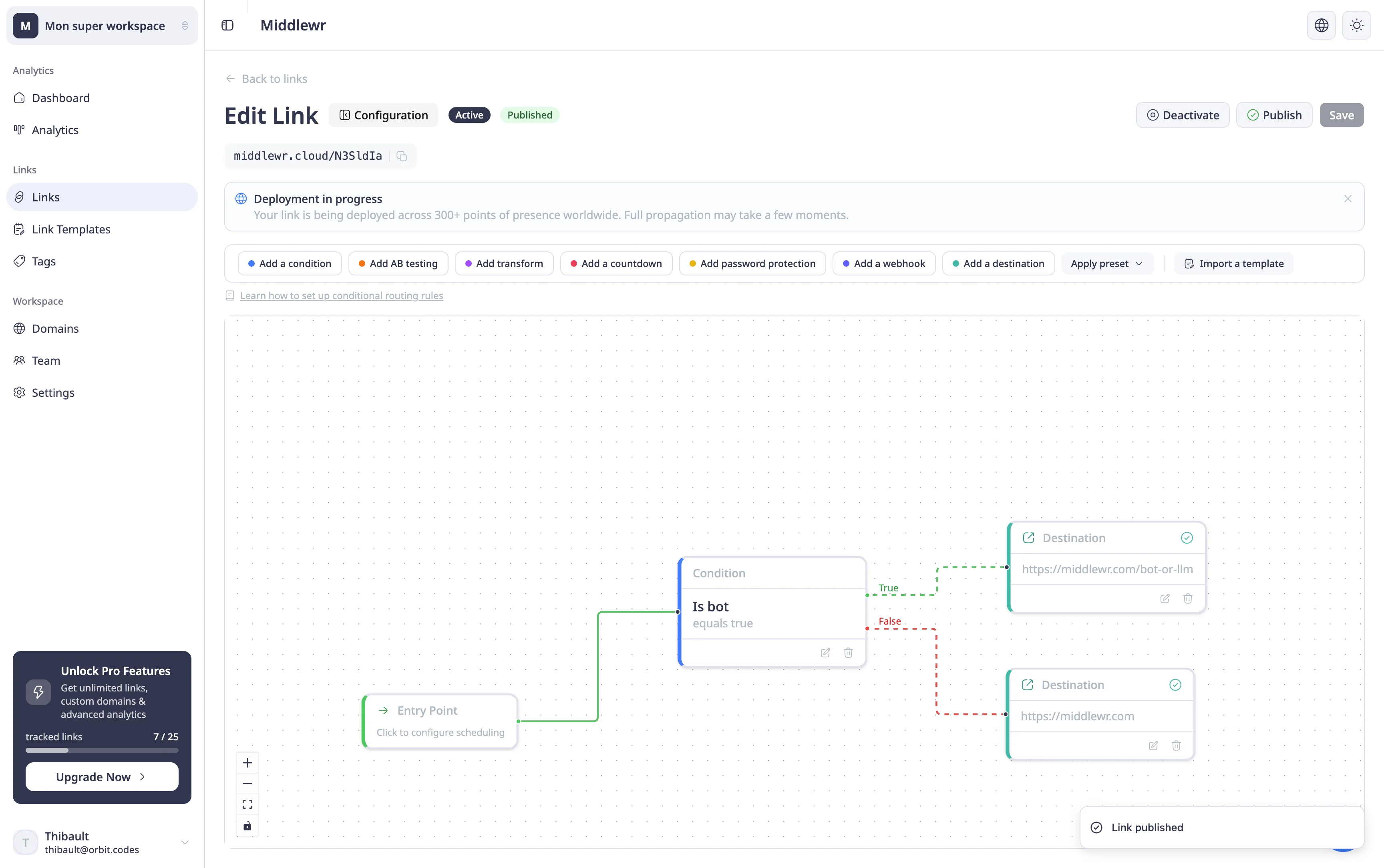
Once all nodes are connected and configured (no red indicators), click Save, then Publish. Your rules are now live — every new click on your short link is evaluated at the edge, and bots and humans are redirected to their respective destinations instantly.
Going further
Now that your link routes bots and humans separately, here are some related guides:
- Conditional routing: How to set up smart redirects — go further with rules based on device type, location, time of day, and more
- A/B testing with split routing — distribute traffic across multiple destinations with weighted splits
- Understanding your analytics dashboard — track bot vs. human clicks and monitor your link performance